=============================================
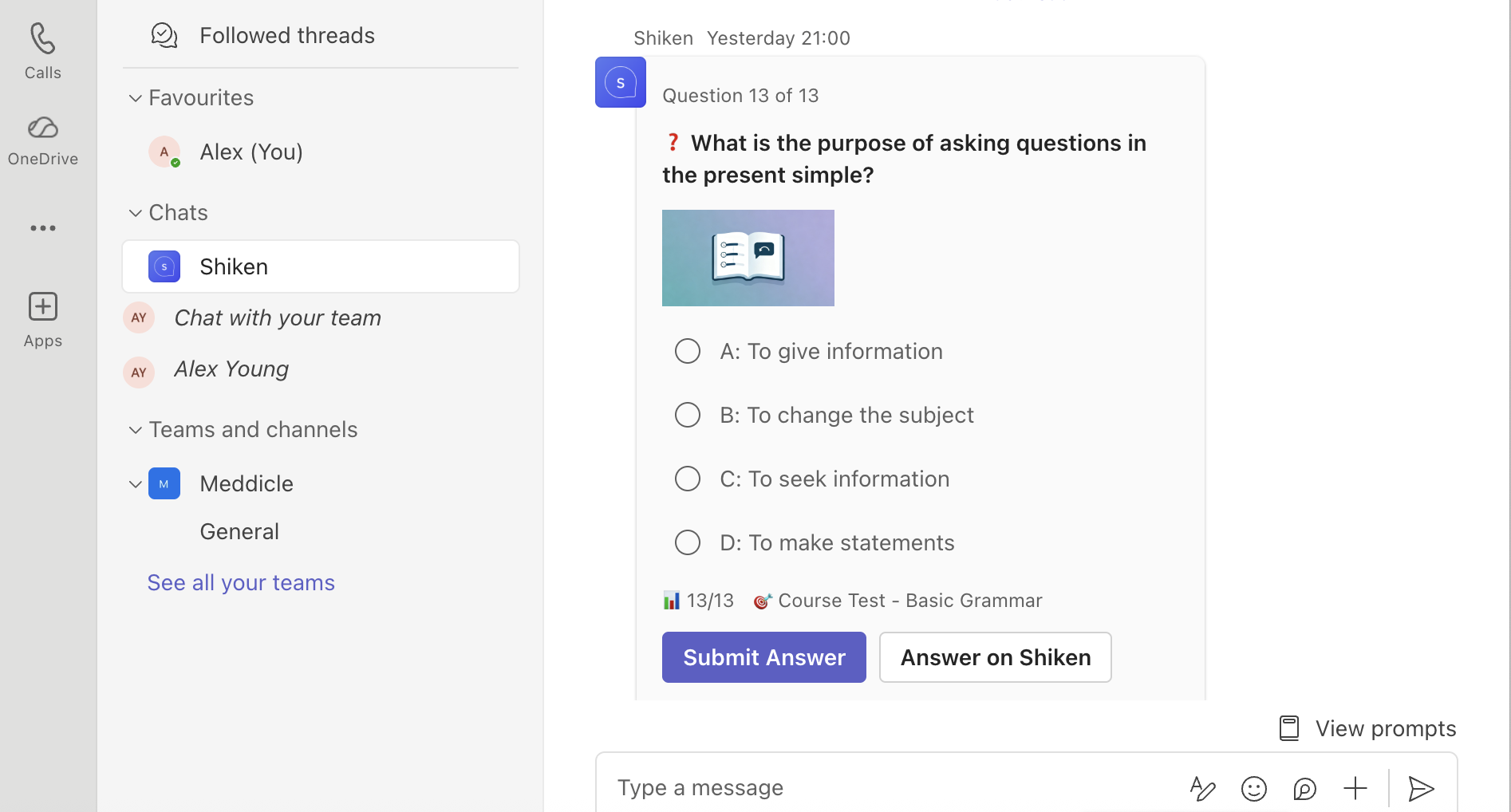
This guide walks organization admins through installing the Shiken AI Learning Coach app in Microsoft Teams via sideloading (custom app upload). This enables AI-powered quizzes, flashcards, and learning sessions delivered directly to users in Teams.
Prerequisites
-------------
Microsoft Teams admin access — You need either Global Admin, Teams Admin, or Teams Service Admin role in your Microsoft 365 tenant.
Custom app uploads enabled — Your tenant must allow custom app sideloading (this is enabled by default for most organizations, but may be restricted by policy).
Shiken organization account — Your org must be set up on Shiken with a Teams integration configured.
--------------------------------
-------------------------------------------------
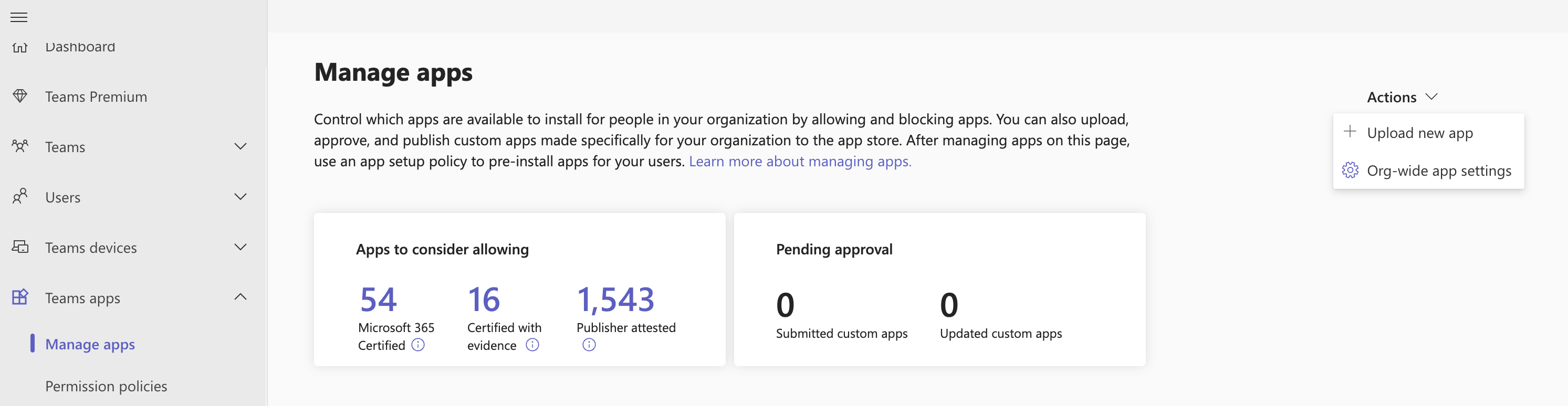
If your tenant restricts custom app uploads, an admin needs to enable it:
1. Go to the Microsoft Teams Admin Center: https://admin.teams.microsoft.com
2. Navigate to Teams apps → Manage Apps
3. Click Actions (top right) and select Org-wide app settings from the drop down
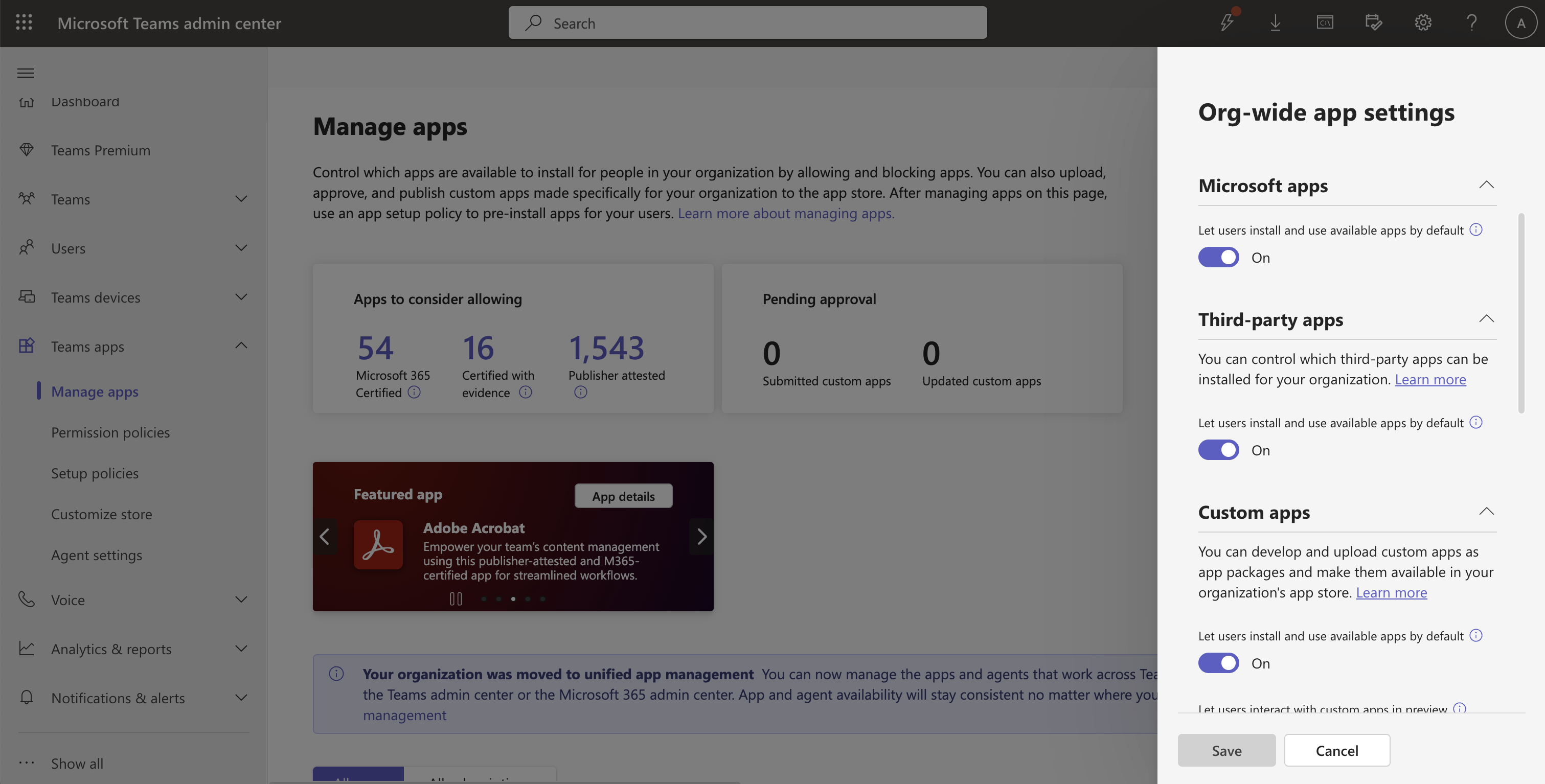
4. Toggle Upload custom apps to On
5. Click Save
> Note: Policy changes can take up to 24 hours to propagate, though they typically apply within a few hours.
----------------------
Option A: Via Teams Admin Center (recommended for org-wide deployment)
1. Navigate to Manage apps in the Admin Center
2. Click the Action button and select Upload custom app
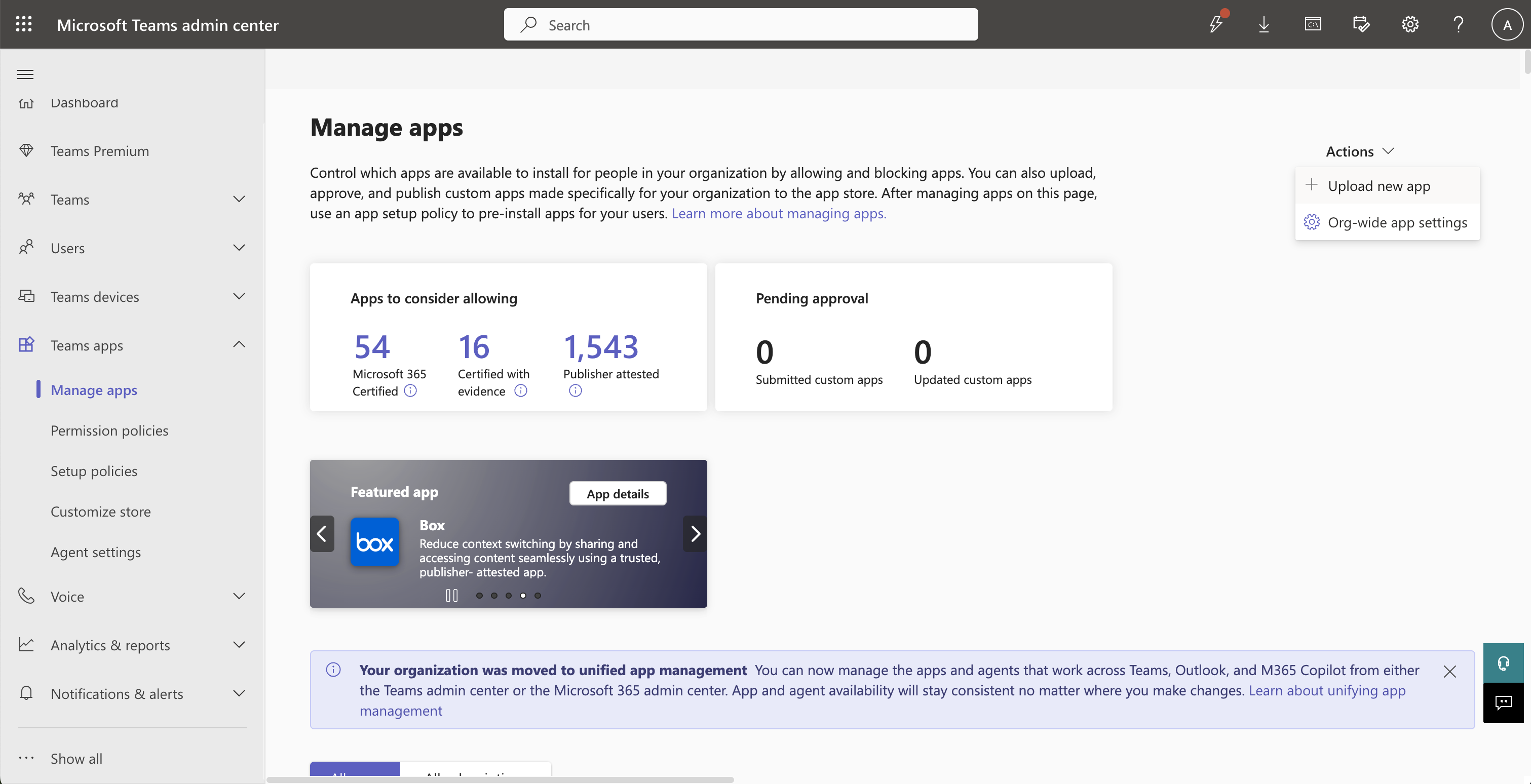
3. Choose the shiken-teams-app.zip file you downloaded in Step 1
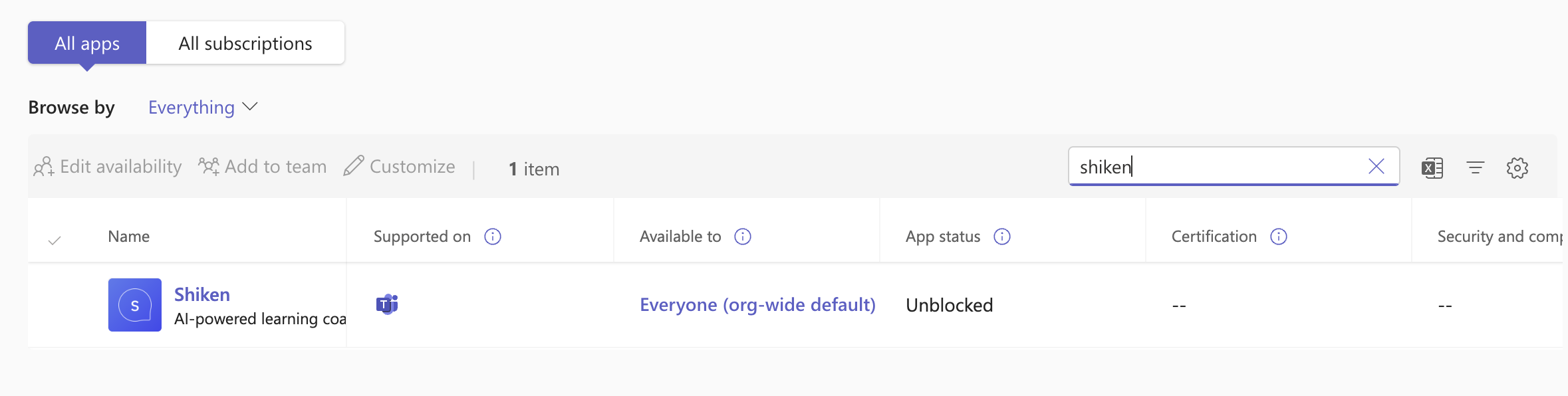
4. Scroll down on the Manage Apps page and type Shiken into the search bar
5. The app will appear in the app list as Shiken
-----------------------
After uploading via the Admin Center, you can control who gets the app:
Pin the App for All Users (recommended)
Pinning ensures the app appears in every user's Teams sidebar automatically:
1. In Teams Admin Center, go to Teams apps → Setup policies
2. Select the Global (Org-wide default) policy (or create a new one for specific groups)
3. Under Pinned apps, click Add apps
4. Search for Shiken and select it
5. Arrange the pin order as desired
6. Click Save
Allow Without Pinning
If you prefer users to discover and install it themselves:
1. In Teams Admin Center, go to Teams apps → Permission policies
2. Select the relevant policy
3. Under Custom apps, ensure Allow all custom apps is selected (or add Shiken specifically)
4. Users can then find and install Shiken from the Apps section in Teams
Deploy to Specific Groups
1. In Teams Admin Center, go to Teams apps → Setup policies
2. Click Add to create a new policy
3. Name it (e.g., "Shiken Learning Policy")
4. Toggle Upload custom apps to On
5. Under Pinned apps, add Shiken
6. Click Save
7. Assign this policy to specific users or groups via Users → Manage users
---------------------------
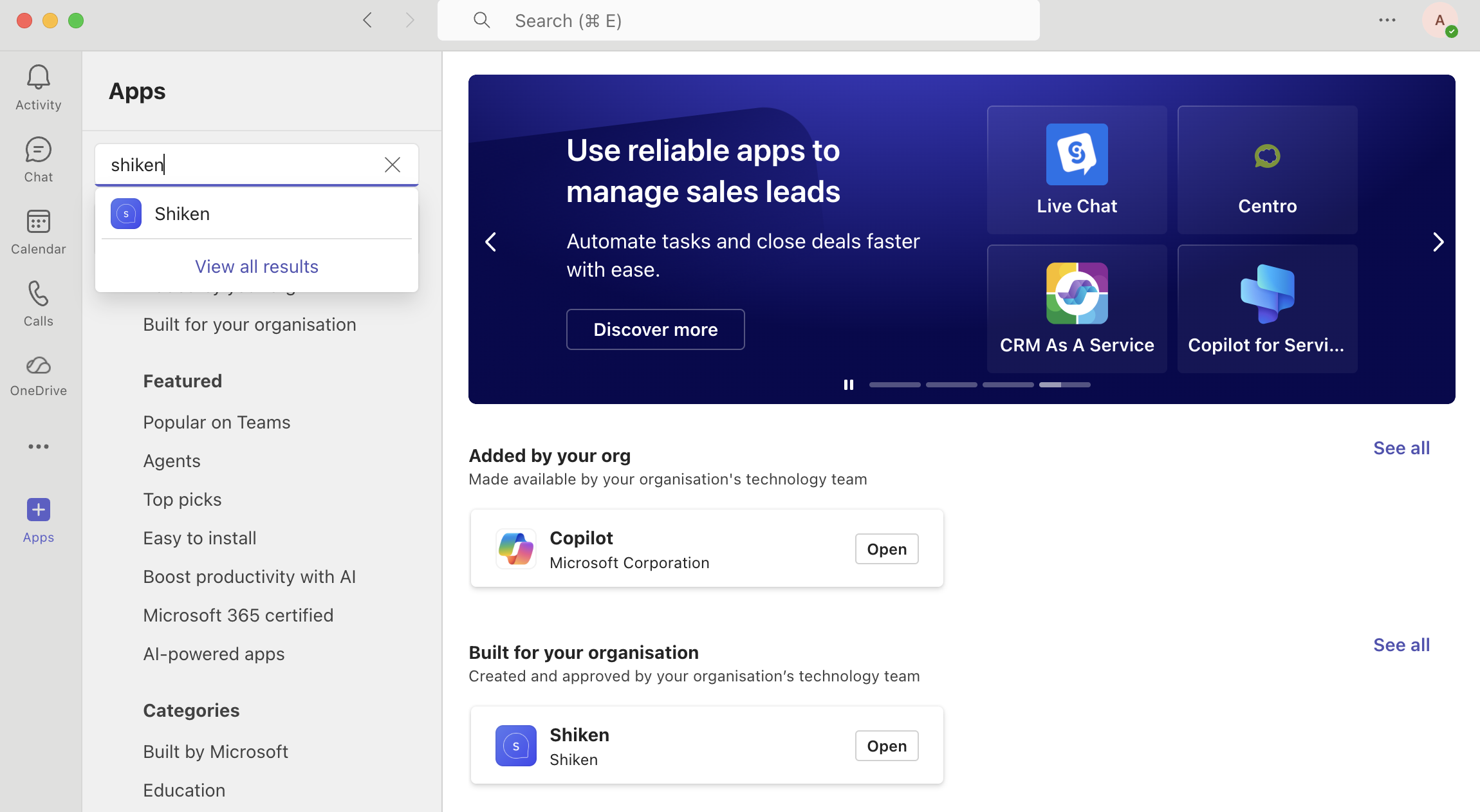
Once deployed, verify the app is working:
1. Open Teams as a test user
2. Find Shiken in the Apps sidebar (or search for it)
3. Open a chat with the Shiken bot
4. Type help — you should see a welcome card with available commands
5. Type progress — you should see your learning progress summary
---------------------
The key step to linking your Teams account and Shiken is to add your Teams Tenant ID into Shiken.
1. Go to any channel in your Teams account and click copy link
2. Paste the link anywhere and look for the part of the link that says tenantid=xxxx
3. Copy the Tenant ID and head over to the Shiken Admin Settings Page and the Delivery tab
4. Scroll down and enable Teams and paste in your Tenant ID and click save - this will perform a check
5. Shiken automatically syncs and provisions your users and imports them from Teams - to do this click Manage Users & Sync
6. Scroll down on the Sync screen and click the Sync Users Now button
---------------------
To assign content to Teams users simply click the Assign button in the top right of the Shiken Admin Portal.
Select your desired product
Name the Session and choose your Delivery Methods
Set a Timezone
Choose whether you want Instant Delivery (all lessons/questions arrive one after another as the user answers them) or Scheduled (lessons/questions arrive daily)
Leave date and time blank if you want to deliver content instantly
Choose the groups or individual users to assign the content to
Click Assign after reviewing the checks
You can view the progress and pause a session anytime by going to the Session tab in the sidebar
---------------
"Upload custom apps" is greyed out
Your admin policy doesn't allow custom app uploads. Follow Step 2 to enable it.
App doesn't appear after upload
Policy changes can take up to 24 hours. Try signing out and back into Teams.
Bot doesn't respond to messages
Check the Teams integration status in Shiken org admin settings. Ensure the Azure Bot messaging endpoint is correct.
"This app is blocked" error
Check Teams Admin Center → Permission policies and ensure custom apps are allowed.
Users can't find the app
Either pin it via Setup policies (Step 4) or ensure Permission policies allow custom apps.